Save it your way
Add a code manually, share a message to GatePass, scan a QR code, or optionally capture likely codes from selected app notifications.
Android Android Auto
Save, scan and organise estate access codes. GatePass remembers gate locations and keeps the current code within easy reach on your phone and Android Auto.
Coming soon to Google Play
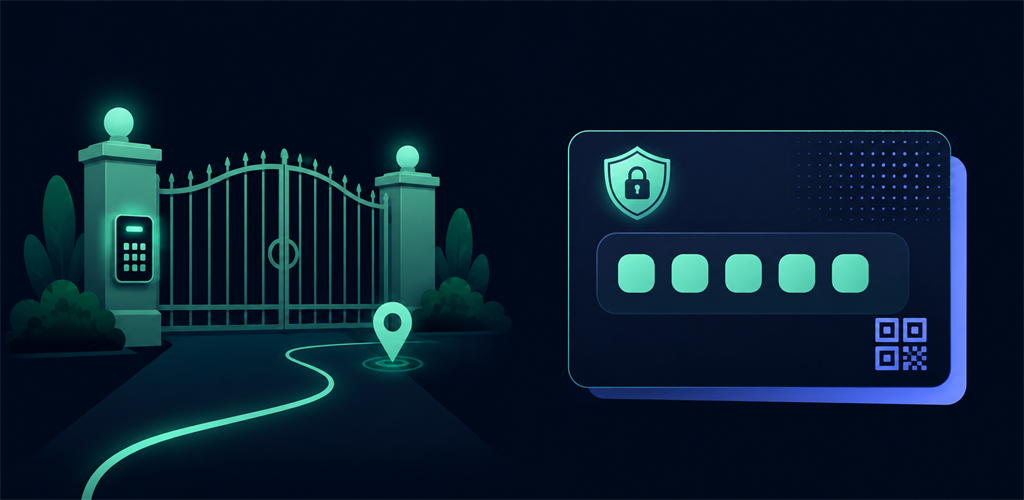
Built for arrival
Everything is designed around the few moments when an access code needs to be clear and easy to find.
Add a code manually, share a message to GatePass, scan a QR code, or optionally capture likely codes from selected app notifications.
Save a gate using your current position or the map. Future codes for the same estate can reuse the location automatically.
See current codes through a driver-friendly Android Auto experience and receive an optional reminder near a saved gate.
Validity dates are recognised where possible, and expired codes can move automatically into the archive.
A simple flow
Save or scan the access code and its validity.
Assign a remembered estate or choose the gate on the map.
Open it on your phone or Android Auto when it is safe to do so.
Private by design
GatePass has no account, no cloud sync and no advertising. Notification access, camera access and nearby reminders are optional. Production releases use Firebase Crashlytics for reliability diagnostics without deliberately attaching gate codes, messages or saved locations.

GatePass for Android
Only interact with GatePass when it is safe and legal to use your phone or vehicle display.